
I’ve been really impressed by recent experiences working with Microsoft Office Documents stored in Google drive. I currently use Google Drive as my primary Cloud Storage. I don’t regularly use Google Docs, Sheets or Slides, as the majority of people I share documents with, expect to receive Documents in Microsoft Office formats. And Google Drive has made some pretty significant advances that makes that even more doable now.
Native Online Editing of Microsoft Office Documents
Most would be familiar with Microsoft’s Office Online offering, and if you have an Office / 365 Subscription, with an allocation of OneDrive space, being able to navigate to Office Online, authenticate yourself, creating and modifying Office documents in OneDrive will be a familiar process.
But now Google has improved the capabilities of Drive to create and edit Microsoft Office Documents so much, that it essentially matches that functionality. I now have no reservations double-clicking on a Word or Excel document and updating it in place in Drive. The display and editing fidelity is perfect. The behaviour of the application is essentially indistinguishable from Office online, and the saving behaviour and subsequent refresh of the locally saved document perfect.
Perhaps someone will correct me, and suggest this capability has been “around for ages”. But I’m sure that not too long ago, when I tried to do just these sorts of things, Google Drive politely tried to convince me to convert the documents to a Google Docs document or a Google Sheets document, all of which I didn’t really want to do. Once again, perhaps my memory is flawed, and this enhanced functionality has been around for ages, but I’ve only discovered it recently! Consider this not particularly exciting document containing a Spaghetti Carbonara Recipe. I’ve simply double clicked on the document and Drive opens it for “in-place” editing, with the DOCX extension highlighted to remind you that you’re editing a native Microsoft Word document.
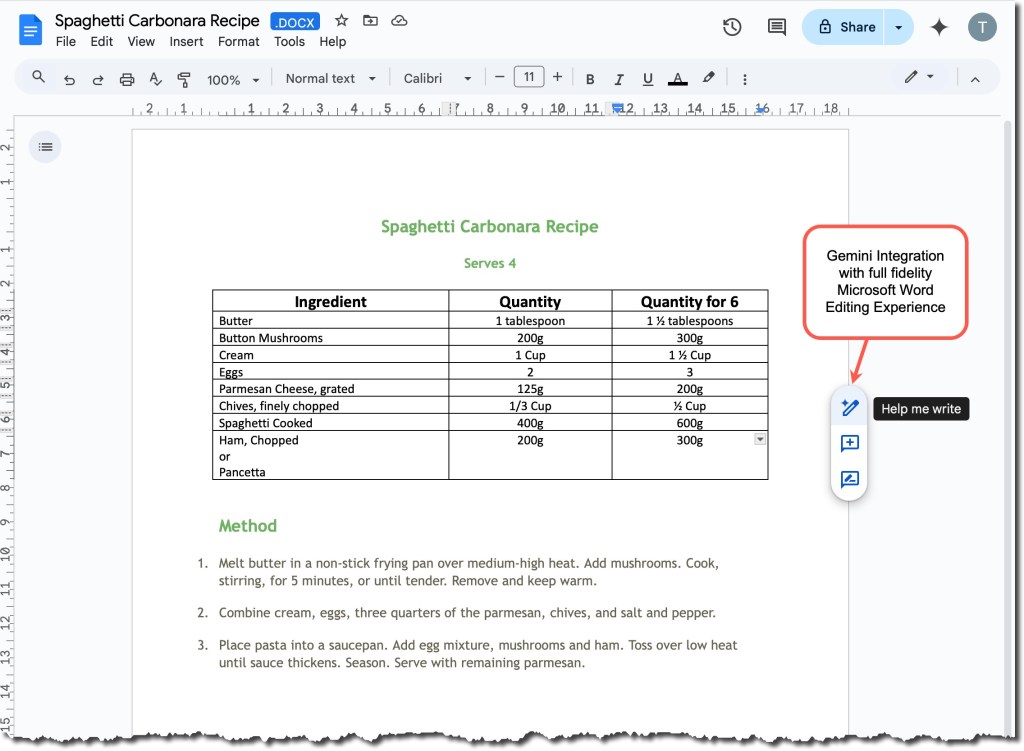
It has remarkably good fidelity with the “rich” editing experience of the full Microsoft Word Product. And being Google based, Gemini is at your fingertips to assist your writing.

And just like Microsoft Word, we can turn on viewing non-printing characters (which I often like to do, to uncover just why a document is formatted the way it is). The result once again looks just like the full product.

And as you can see, beyond the non-printing characters, Drive keeps you informed of the status of your changes. The little Cloud icon shows a tick as your changes get saved into Drive. And if you’ve got the document locally synchronised, you’ll see those changes, regularly downloaded to your local copy.
The same sophisticated experience holds true for the Excel and PowerPoint documents I’ve tried. So in summary, I’m exceptionally impressed with how sophisticated Drive’s editing of these native Microsoft Office Document Formats is now. An excellent example of integration and interoperability.
Google Drive handling of Microsoft Office “In Place” Editing of Documents
This issue is a much less significant one. More of an annoyance, which seems to have been eliminated. In earlier versions of Google Drive, if you edited a locally stored version of a Microsoft Office document, that is an Office Document stored in a synchronised Google Drive Folder, when Office creates the required temporary file that contains the recovery information in the same directory as the original document – that file with similar name as the original document, but with a tilda (~) at the front of its name, things could go wrong.
Up until relatively recently, I regularly found examples of these bits of Office “debris” hanging around Drive repositories. It seemed as though Google Drive didn’t “honour” the deletion of these temporary files, as the Microsoft Office applications gracefully exited, for some reason – perhaps related to the locks still held on the files? Not sure, I’m just conjecturing there.
What should happen, is that the Microsoft Office applications should delete those files when the applications exited. But for some reason, these files weren’t deleted, and that seems to have been more common when the files were located in Google Drive.
Has the handling of these temporary files improved because of changes to Google Drive? Or changes in the way Microsoft Office Applications handle the scenario when the documents are located in Cloud Providers? I’m not sure, but the behaviour has improved significantly. And that is a very good thing.
I wanted to highlight these two observations. Google Drive’s native editing capabilities of Microsoft Office Documents is clearly the biggest positive here, but the other point is worth noting as well.
 TA's Ramblings
Leave a comment