I like to think I’m pretty adept at working with Mac OS. Friends call on me when they’re having problems, and I almost invariably can help them out. So when I’ve been struggling with something myself, for nearly two weeks, with no solution in sight, I was getting pretty frustrated.
Let me set the scene. Most of my Macs are now Apple Silicon based. One of my last Intel based Macs was a 2020 i7 iMac which I retired as my primary desktop, when I purchased a great Mac Mini M4 Pro. Prior to that, I’d been using it for Software Development and Windows virtualisation with Parallels.
But now with the greater sophistication Parallels offers on Apple Silicon, and the performance of the iMac I was becoming less and less satisfied with, I decided to “retire it” to be a media server – a Plex Server and use it for several other “always on” tasks around the house.
It sat there in the corner unobtrusively “doing its thing”. It’s actually only got a 512 gb internal SSD so I had it configured with an external SSD as boot drive with considerably more space for the Plex media I serve.
One day a couple of weeks back, although I use Parallels for most of my Windows emulation work – on Apple Silicon – there was a scenario where it would be really helpful to have a genuine x86 windows environment to prove something out, so with a little reluctance and too little forethought, I set out to try and partition that primary SSD in a way that might allow me to set up a Bootcamp partition. We all know that any change has a risk of failure, and sure enough this one did!
Setting up Bootcamp didn’t go well. Clearly the specs of the machine didn’t allow x86 Windows 11 to be installed, and then I tried to get Windows 10 installed but things just didn’t seem to be working well. After a while, I concluded it wasn’t a good idea to persist, and decided to abandon this approach, and return the machine to its original configuration: Sequoia booting from the external drive, which it had been doing quite successfully, and find another solution for running Windows on Intel later.
And that was when my troubles began.
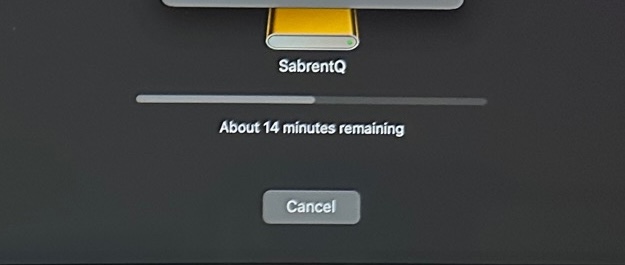
I tried doing a standard reinstall back to Sequoia, and it failed with 14 minutes to go (that time would become all too familiar), with a somewhat cryptic message that the installer was corrupt, please try again. I did try again, but still no good.
So I went through several of steps, after reading all of the copious amounts of information on the Apple Support site about how to resolve issues like this:
- I entered Recovery Mode in several ways – the various key combinations provide several different outcomes – (command-R, option-command-R, etc) one tries to deliver the latest OS, one the latest OS version compatible with your Model, and finally another tries to install the original OS Version your machine came with.
- Both of the first two approaches failed. They both tried to install MacOS Sequoia, and failed in the same way.
- The third approach worked, but as you’d imagine, left me with the now ancient, and mostly incompatible MacOS Catalina installed on my machine.
- One of the most frustrating parts of all this was that every time I tried to upgrade to any of the later intervening versions – an approach I hoped might allow me to get to Sequoia eventually, the same error arose, always at approximately the same point in the installation – around 14 minutes – with the same message about a corrupt update.
- Among the other steps taken were the ever-present suggestions to reset NVRAM, SMC, boot in Safe Mode, etc, etc. I believe I tried everything in the list of suggested options to assist in the recovery of a Mac where Mac OS update or re-installation isn’t succeeding.
So then, I tried the most “aggressive” approaches suggested by the Apple Support articles:
- I put my iMac into DFU mode, and tried the two approaches Apple recommended.
- The “non-destructive” Revive approach – which as I understand it makes sure the firmware of the machine is re-writtten to ensure all is working correctly to support the current version(s) of the operating system, and
- The “destructive” Refresh approach – which is analogous to the Erase option available in later versions of Mac OS.
Having done all that I once again tried the various Recover Approaches, which all led to the same outcomes.
As I delved deeper into the issue, I tried to look for common features of the failed installations, and began to take a closer look at the Installer Log, which is available whenever an installation is taking place. And I saw a common theme – a reported mismatch between checksums (I’m using the term checksum here – to represent a validation calculation that ensures the downloaded package isn’t corrupt) of the downloaded package, and what had been calculated as the checksum locally.
So it seemed highly likely that this was the root cause of my problems. My machine was calculating a different checksum than what the Installation package was saying it should be? And hence the Installers were being reported as corrupted. Below – and excuse the quality of the image – it’s a photo of the installation log on the iMac – is an example of the problem.


The highlighted line shows where it’s determined that the checksums don’t agree … and in the first image, you can see my least favourite “14 minutes to go” progress! So where to go from here?
Finally I came across a response on Apple Stack Exchange that provided one additional troubleshooting tip, that I hadn’t seen anywhere else – check your machine memory. Full kudos goes to the respondent – user26554449 – to this question on apple.stackexchange.com for suggesting this potential answer.
MacOS Sequoia Unarchive Error during Installation on Intel MBPI’d eliminated all but this 5th suggestion they made – Test your RAM.
I’d no reason to suspect there was anything wrong with the iMac’s memory – it was equipped with an upgraded 64 GB of OWC memory, and I’d not seen any issues reported. I’d already performed the Apple Diagnostics, with nothing reported. The response suggested using a RAM testing tool like Memtest+ but rather than doing that, I thought I’d do something much more simple, given how easy it is to install and remove memory from this family of iMacs.
I opened the RAM cover – with everything disconnected of course – and removed all four DIMMs, and re-inserted the single DIMM that was at the top of the RAM cradle at the bottom – for no particularly good reason other than to change the location of the DIMMs – and restarted the machine. Having only added back one DIMM the machine started with 16 gb instead of the 64 gb it had in place before.
My first try was an incremental upgrade to Monterey – remembering that the best “recovery” I’d achieved to date, was restoring my machine to its original version of Mac OS, Catalina. I waited with bated breath, watching the Installer Log, particularly as it got to the validation step. There was a very long delay, and then I realised that the progress bar had moved past the critical 14 minutes point, and finally the Monterey setup windows were displayed. Success!
Upon logging into Monterey, naturally the Mac OS Sequoia upgrade was offered, and I began it. Once again a flawless installation. The next step was to get back to my former installation configuration, and install Sequoia, using an bootable installer – already prepared – onto my large external SSD. I even “tempted fate” by re-installing one of the 3 DIMMs I’d removed back into the iMac to bring the total memory back up to 32 gb.
And the installation of Sequoia onto my external SSD worked flawlessly!
There are still many questions for me about the actual root cause of this issue. Was one of the DIMMs that is no longer installed faulty? Was reducing the amount of memory in the iMac influential on the re-installation?
For me, the big learning out of this incident is that we as Apple Mac users – and generally advocates and unashamedly fans of the hardware – become so infatuated with the almost legendary reliability of this equipment that the thought that this issue – a potential memory failure (or perhaps misconfiguration) – could have been the root cause of this issue would seem incredibly unlikely, and yet it appears to be the case.
I hope my experience might assist others, as I know I’ve seen many others with similar tales of woe, where installations all seem to come unstuck – all around the 14 minute mark – all with not too dissimilar errors to mine. Clearly I was fortunate that removing and re-arranging the easily accessible memory DIMMs succeeded where nothing else did. Hopefully others have success with this approach!
 TA's Ramblings
Leave a comment